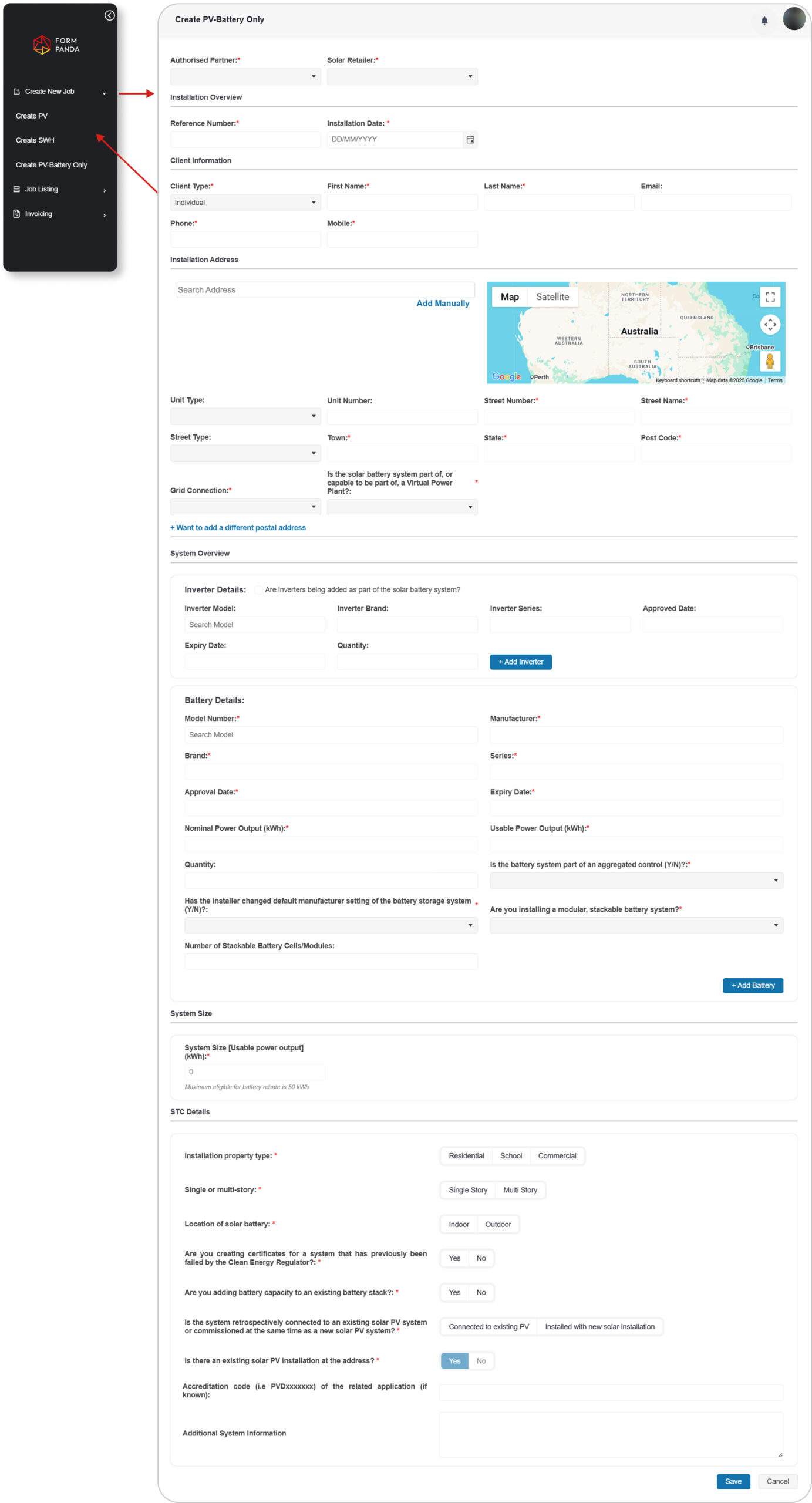
To create a new job, go to the “Create Job” section from the dashboard’s left panel.
From the available Job Types, choose “Create PV-Battery Only” to initiate PVB Job.
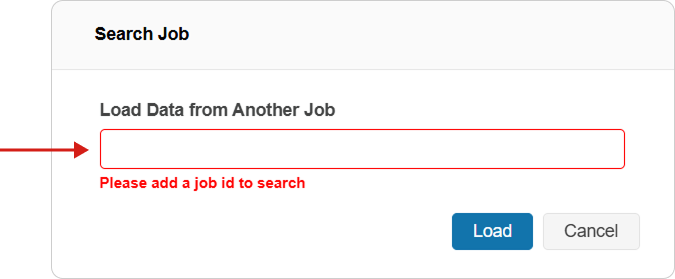
A pop-up titled as “Search Job” will appear. The “Search Job” pop-up allows users to fetch job information by specifying a valid Job ID.
Clicking Cancel enables the user to manually provide all required information.
Users can also create PVB Job by selecting PVB Job creationoption during the PV Job creation.
2. View Job List
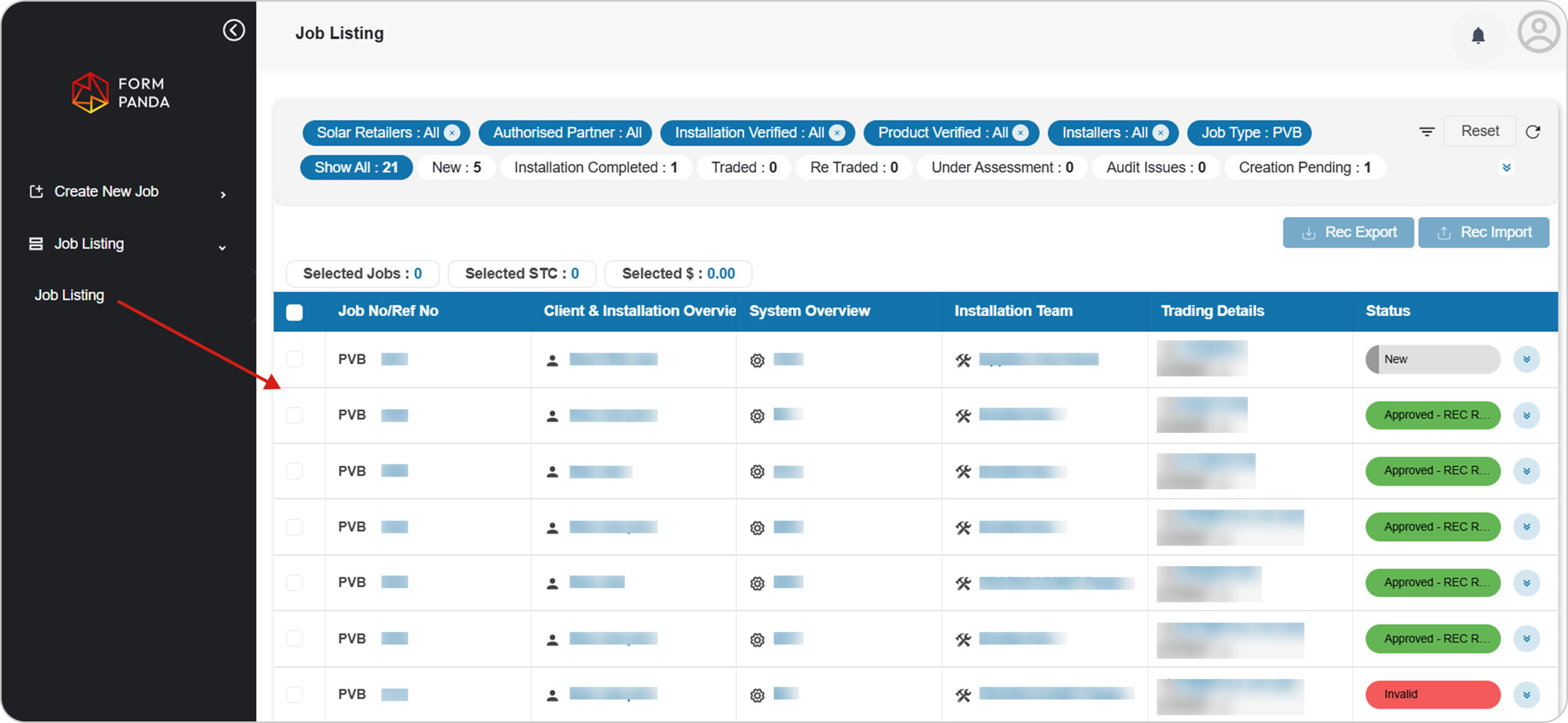
After creating a job, the user will be directed to the Job list, where new job appears at the top of the list. (The job list can also be accessed from the left menu)
In the “Job List Screen” user can search Job by using filters.
Click the “Job No/Ref No” to view Job details.
3. View Job Details
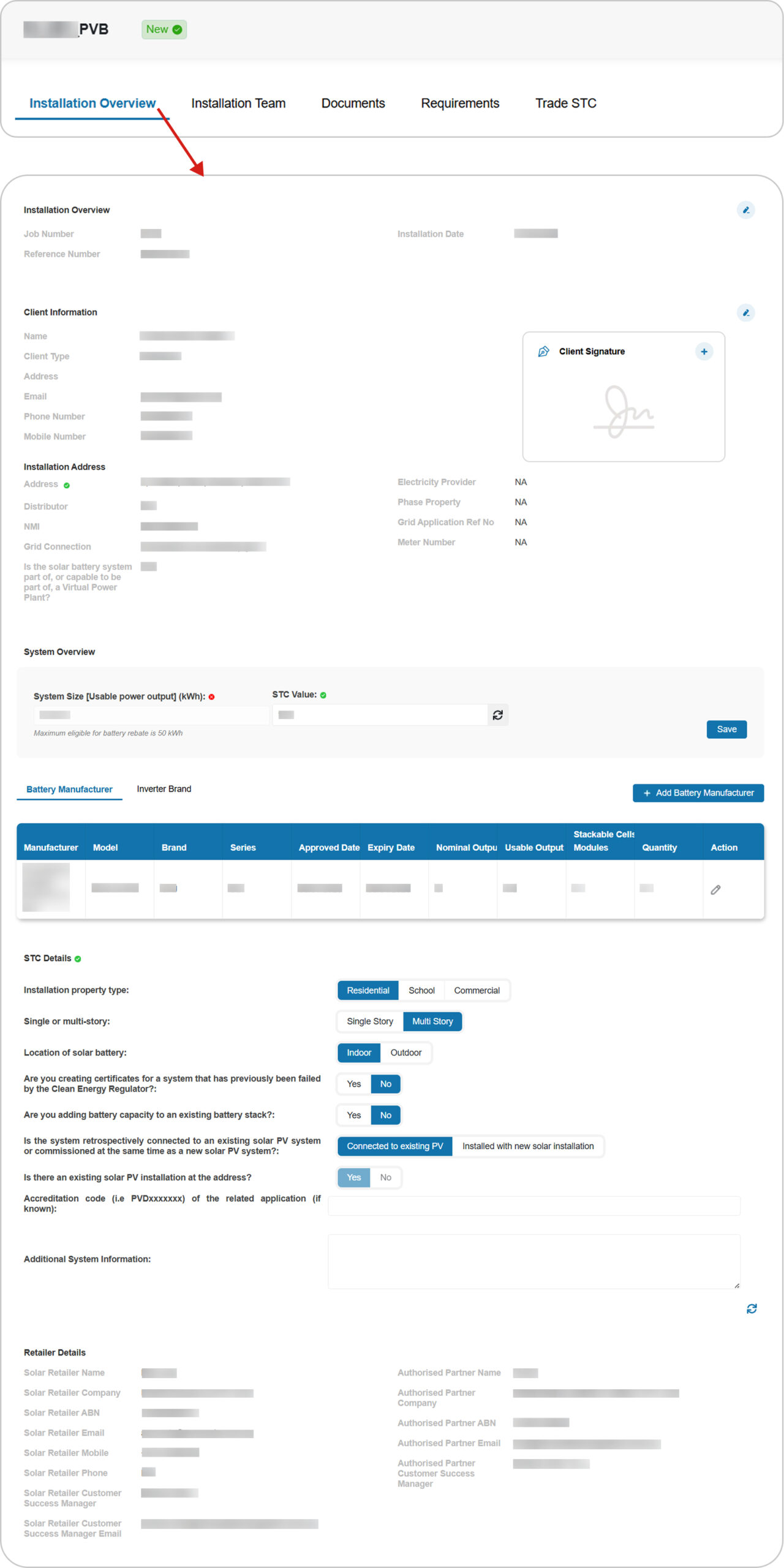
Go to the “Installation Overview” section to view installation details.
Check all the details i.e; Installation Overview, Client Information, Installation Address, System Overview and STC Details.
User can “Edit” information to make changes and “Save“.
4. Installation Team
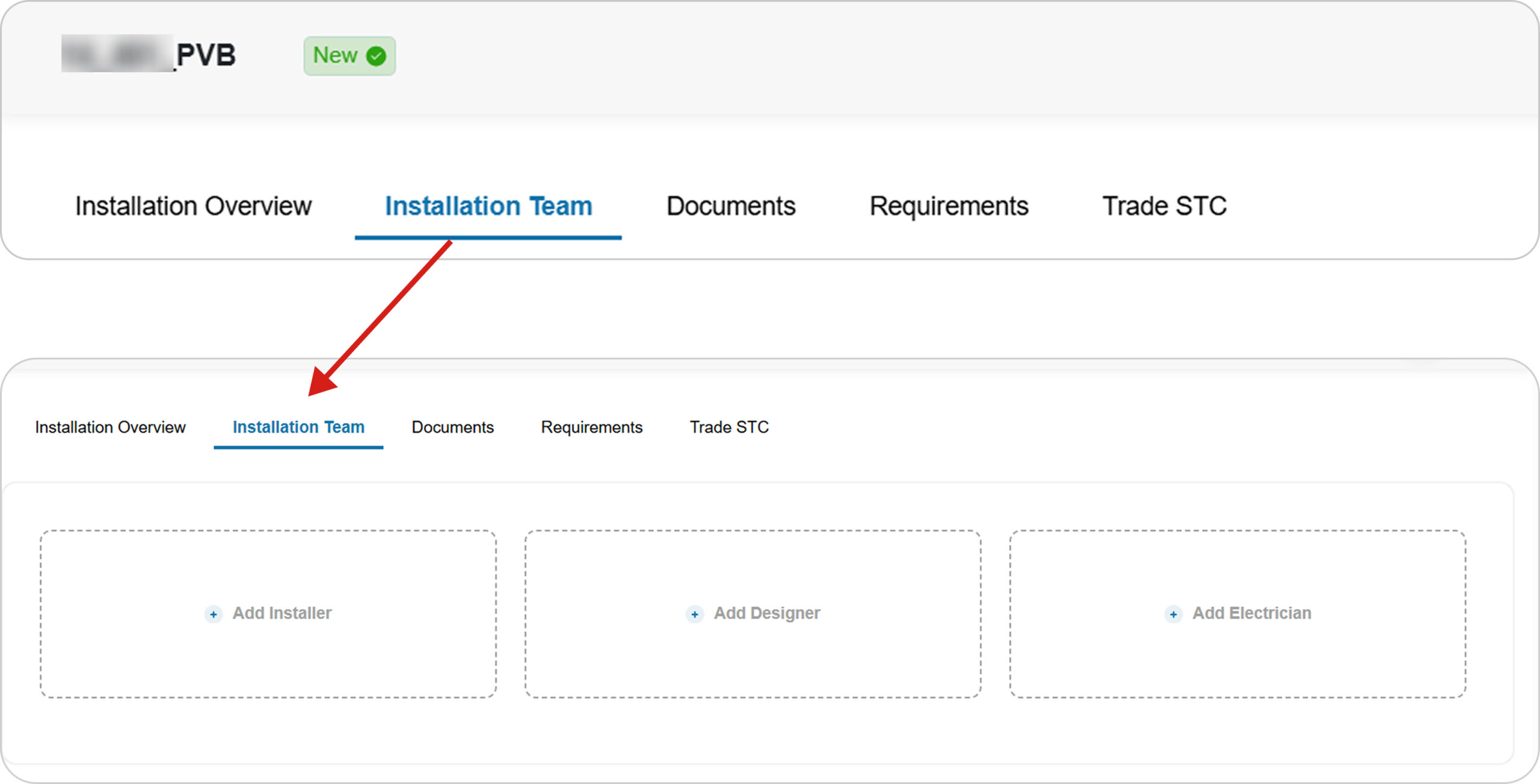
Go to the “Installation Team” tab.
Add “Installer“ and “Designer“ by using their “SAA Accreditation No“.
Add “Electrician” by using it’s “License Number“.
Note
Only electrician can add job using their Electrician Licence, if licence state matches the job’s state.
An electrician with the account type “PVB” can work for all job types, whereas an electrician with the account type “SWH” can only work on “SWH” jobs.
→ Follow these links to see the process of PV and SWH jobs in more detail.
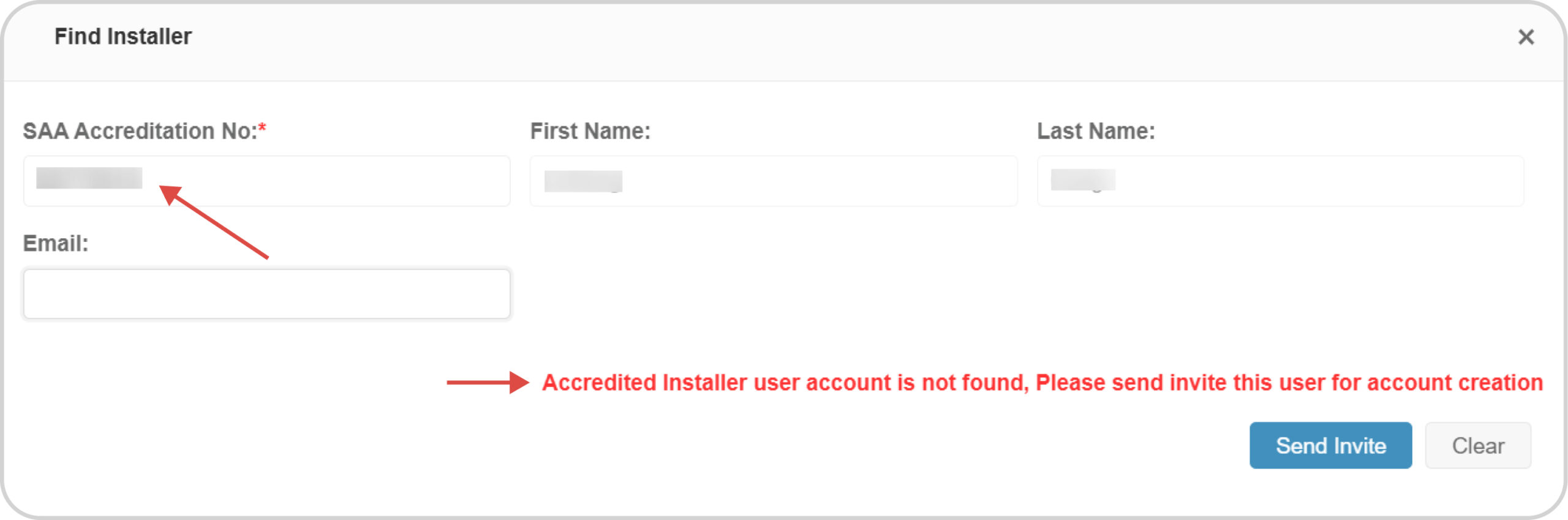
To Add Installer, user needs to enter his valid “SAA Accreditation Number” and click outside the field.
The system will verifies the SAA Accreditation Number and auto-populate the related details.
If the system does not verify the SAA Accreditation Number, it means:
This installer is not registered with Form Panda, Click “Send Invite” to invite them to register.
User entered an invalid “SAA Accreditation Number“.
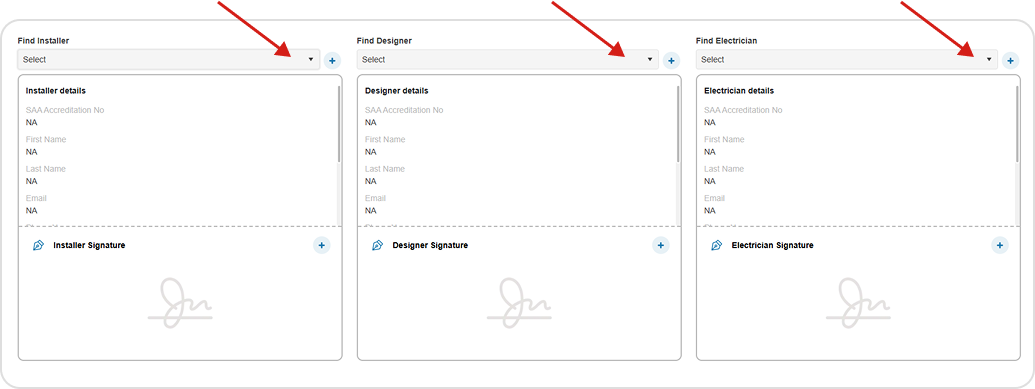
Installer, Designer, and Electrician will be automatically listed in the dropdown after being added, User can add them to the job by selecting from the dropdown list.
Add Signature
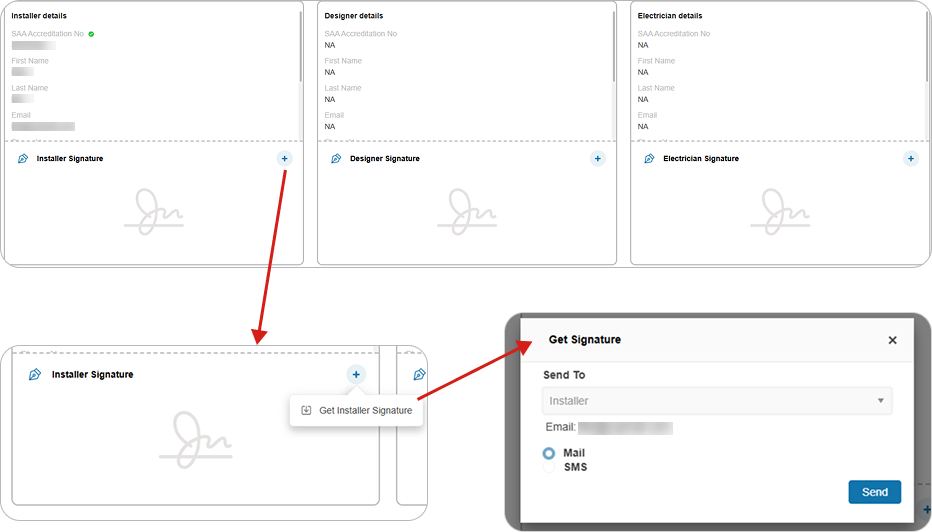
The installation team is expected to sign through mobile app. In case of missing signatures, Solar Retailer can send signature request to their email by following these steps:
Add “Signatures” for “Installer“, “Designer“, and “Electrician” by clicking the “Add” icon.
Solar Retailer will send signature request via email or SMS by clicking the “Send” button.
“Installer“, “Designer“, and “Electrician” can add their signatures by accessing the written statement link sent to their email. Once completed, their signatures will appear in the signature section.
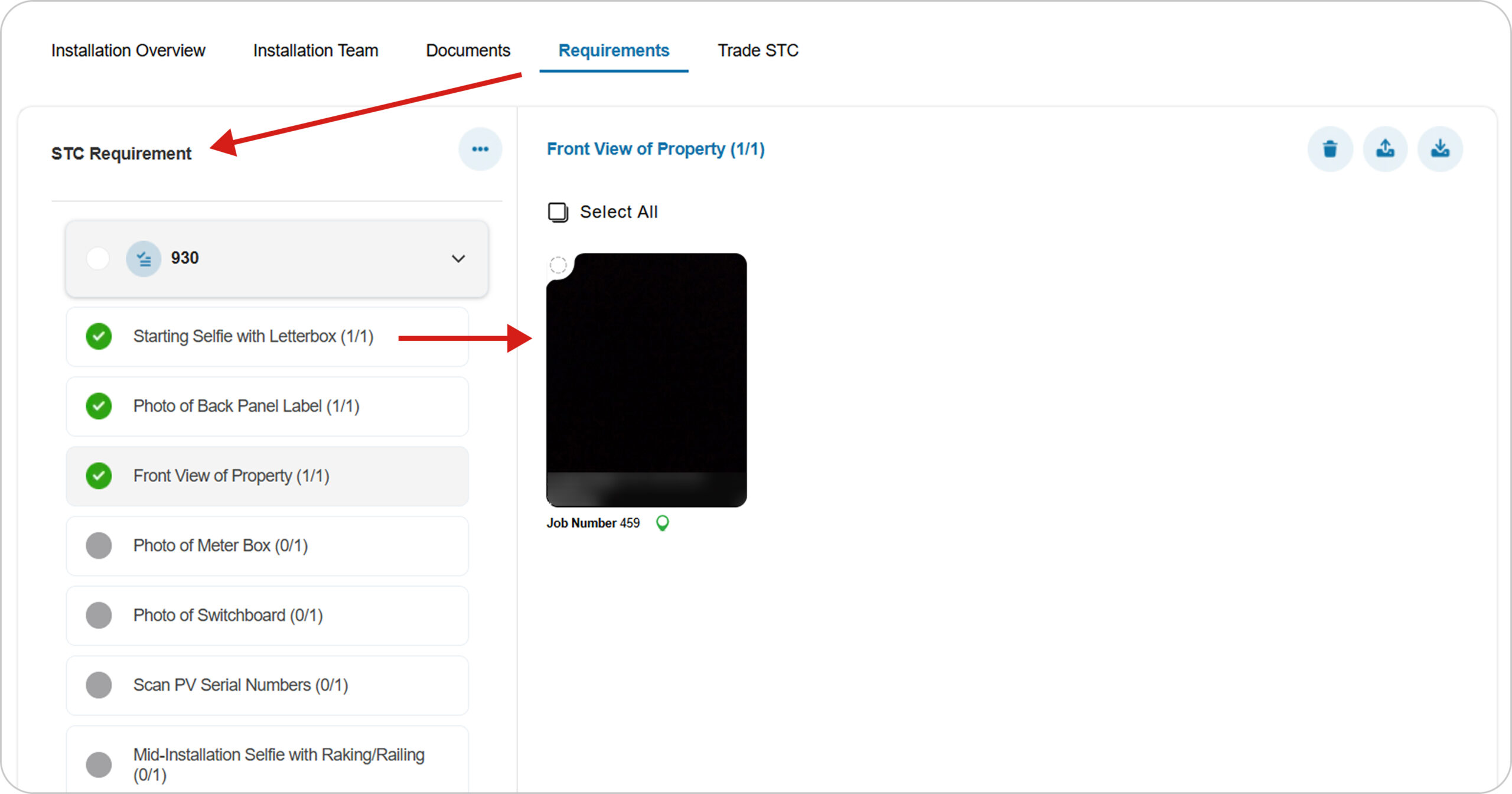
Assigning an installer to a job will automatically schedule a visit, and the auto-generated requirement list for that job will be shown in the “Requirements” tab.
Go to the “Requirements” tab to view the auto-generated requirement list.
The Installation team can add all the required data to the requirement list using mobile app.
After completing requirement list, Installer need to submit the job using mobile app to update status from “New” to “Installation Completed“.
5. Documents
The CES document can be uploaded directly.
When images are uploaded under the “Photo of Electrical Safety Certificate” requirement, they will be generated as a document in the CES docs.
6. Trade STC Job
Go to the “Trade STC” tab in the job details, Select the pricing term and click the “Trade STCs” button.
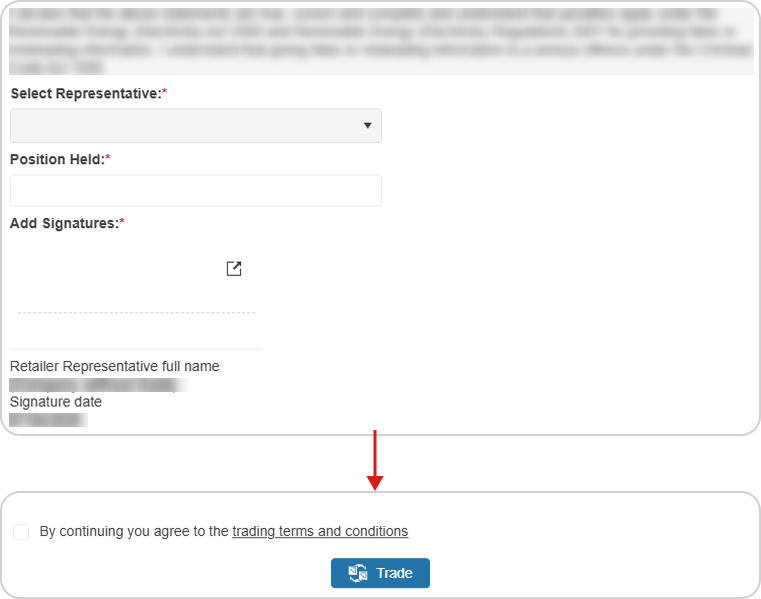
After clicking the “Trade STCs” button, the “Edit Representative Details” popup will appear. Select the representative, fill in the position held, add the signature, agree to the terms and conditions, and click the “Trade” button.
Once trading is initiated, the job moves towards the traded status.