To register, the solar retailer simply needs to follow the invitation link provided via email.
The invitation link takes the user to a detailed registration form.
Users need to fill all necessary details and click the “Continue” button to save the record.
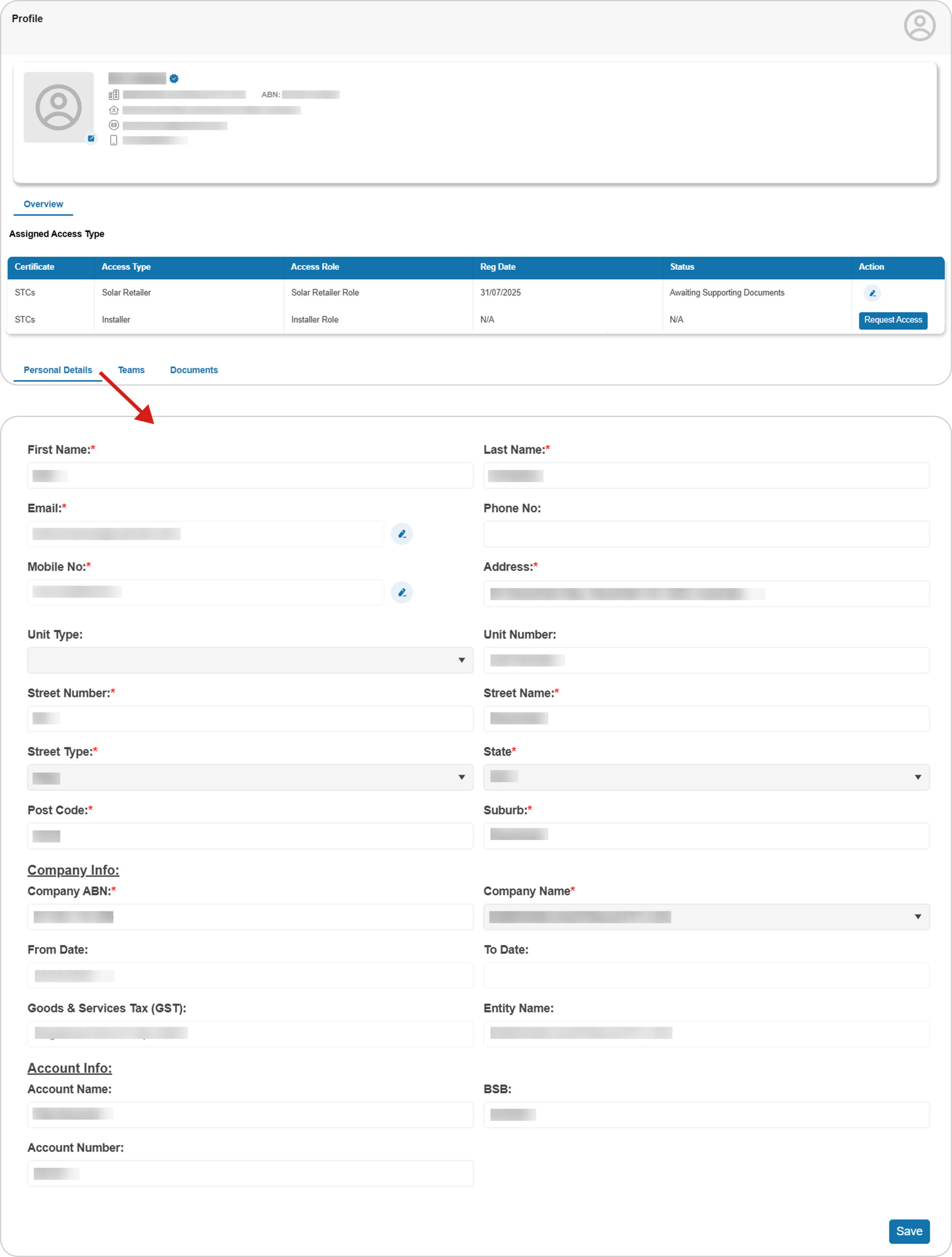
1. Personal Details
After saving the Solar Retailer form, the user is directed to the Profile page, User can update the saved data if needed.
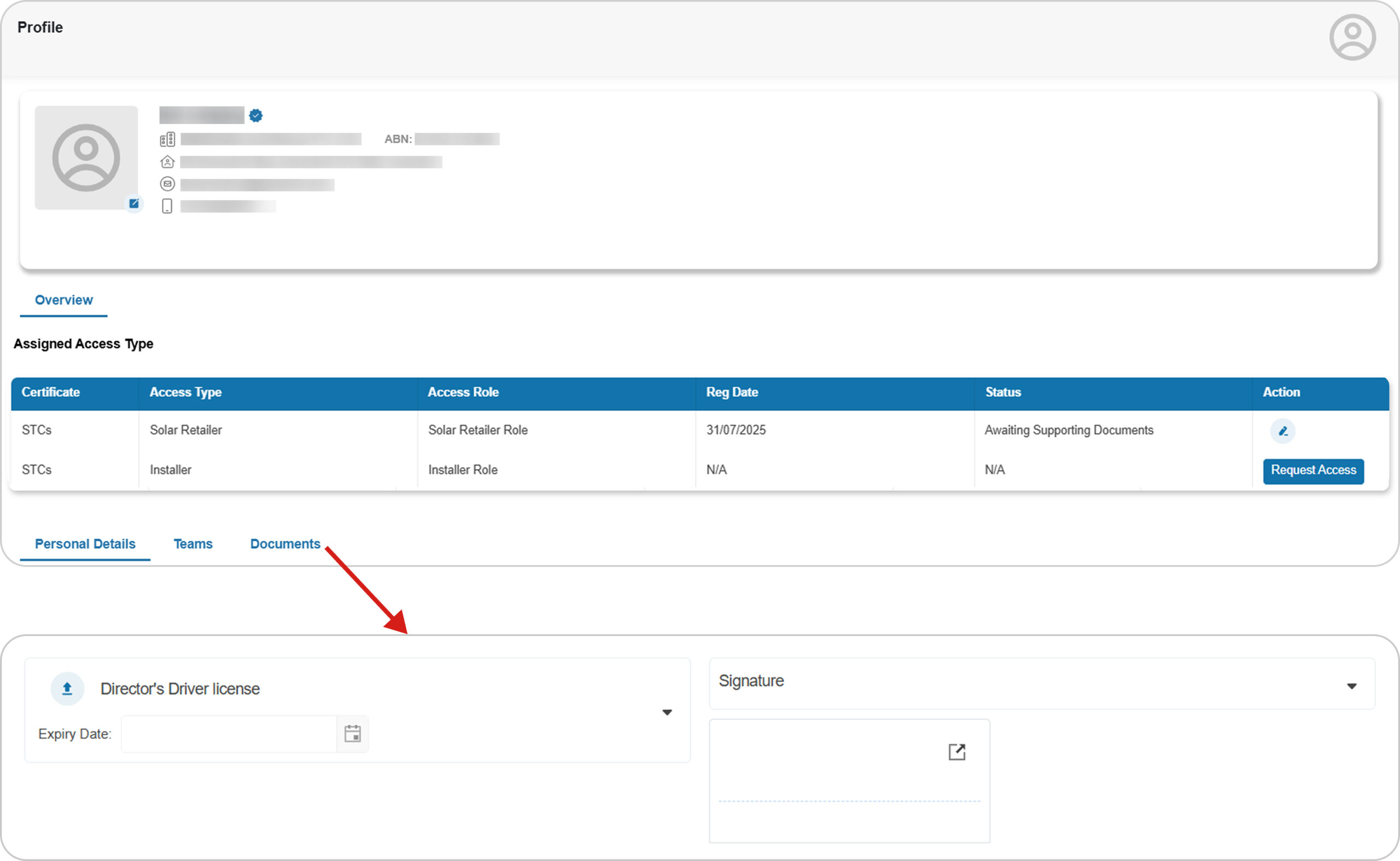
2. Documents
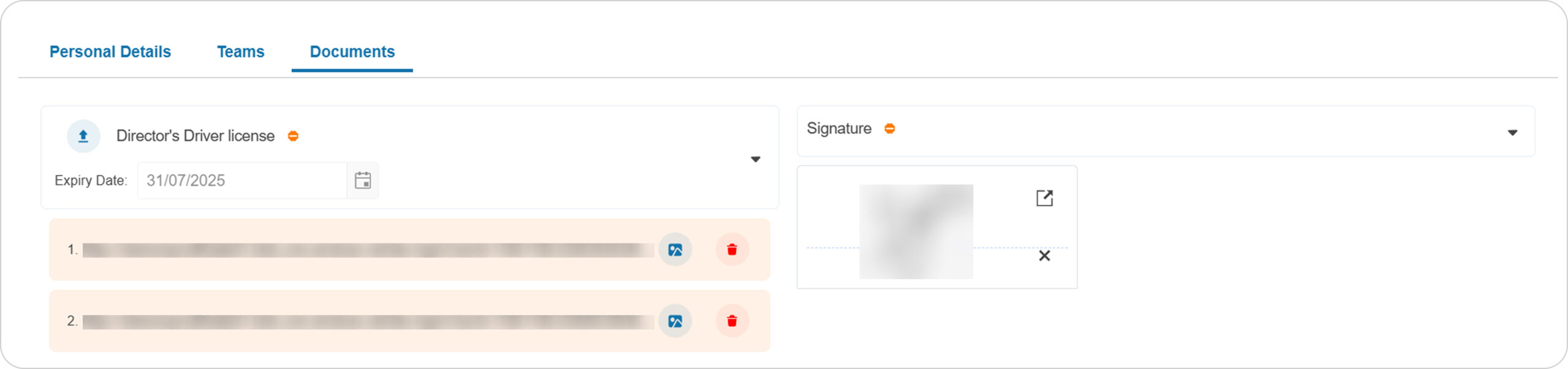
Selects the “Documents” tab, it will show a list of required documents for the solar retailer.
The user needs to upload the required documents to complete their Solar Retailer registration or verification process.
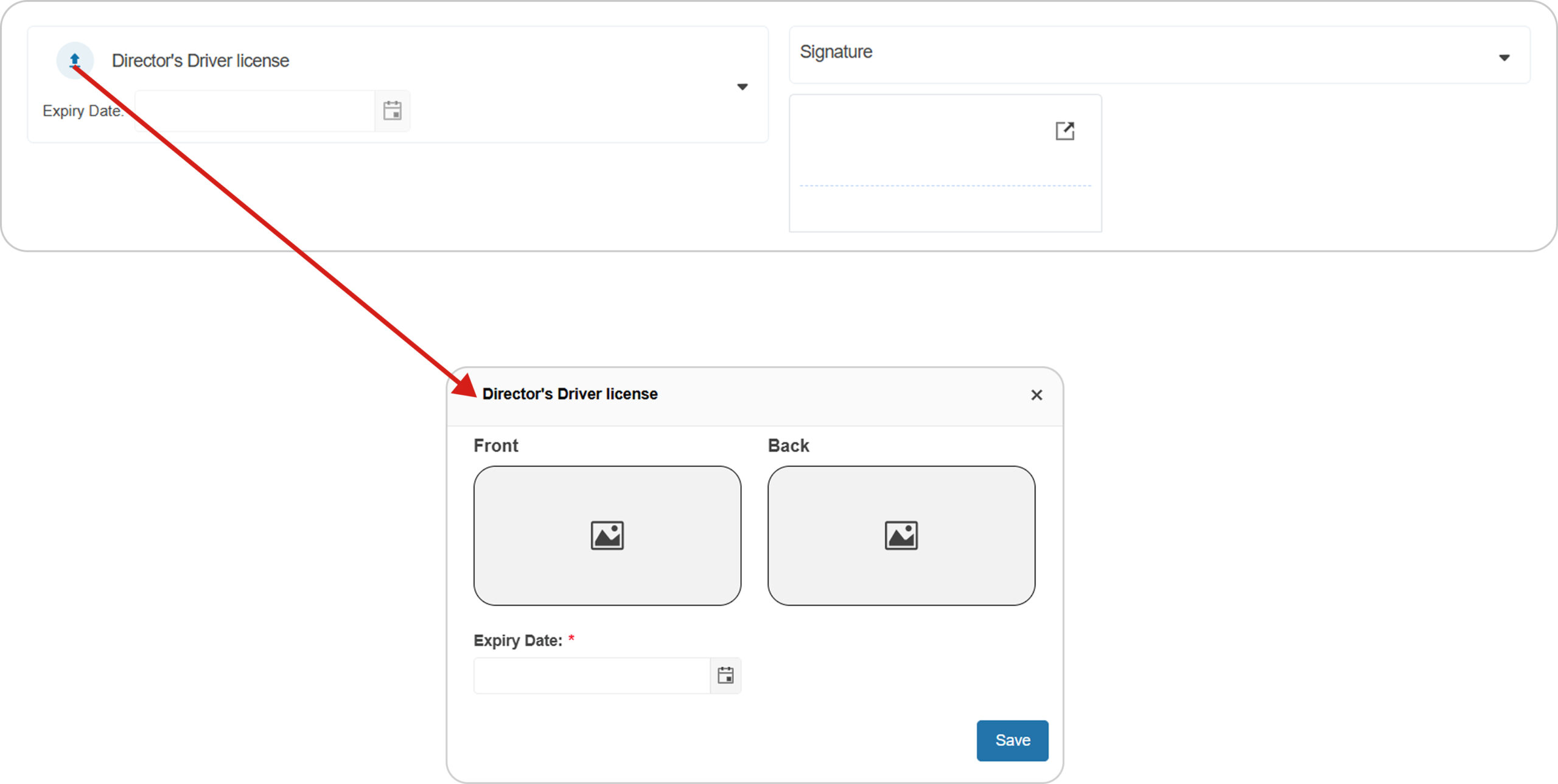
- Director’s Driver License
User need to upload all required documents and click the “Save” button to save the record.
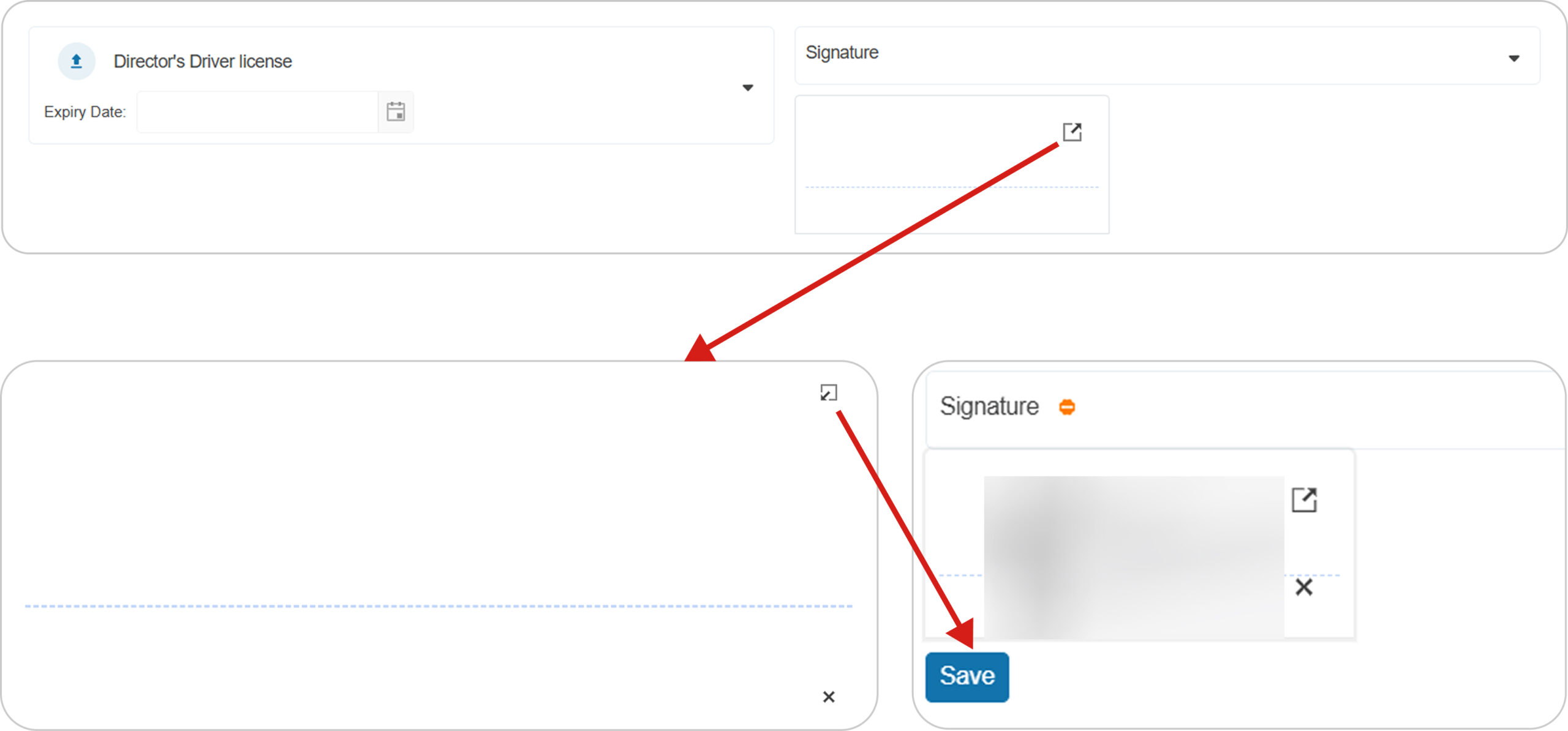
- Signature
Click on the “Signature” area, Signature pop-up will appear.
Solar retailer need to provide their “Signature” in the specified field and click “Save“button to save the record.
Once all required documents are uploaded, the system detects that the document submission requirements are met.
The orange color icon infront of each document shows that the documents are in a “Pending Review” state.
3. Submit for Approval
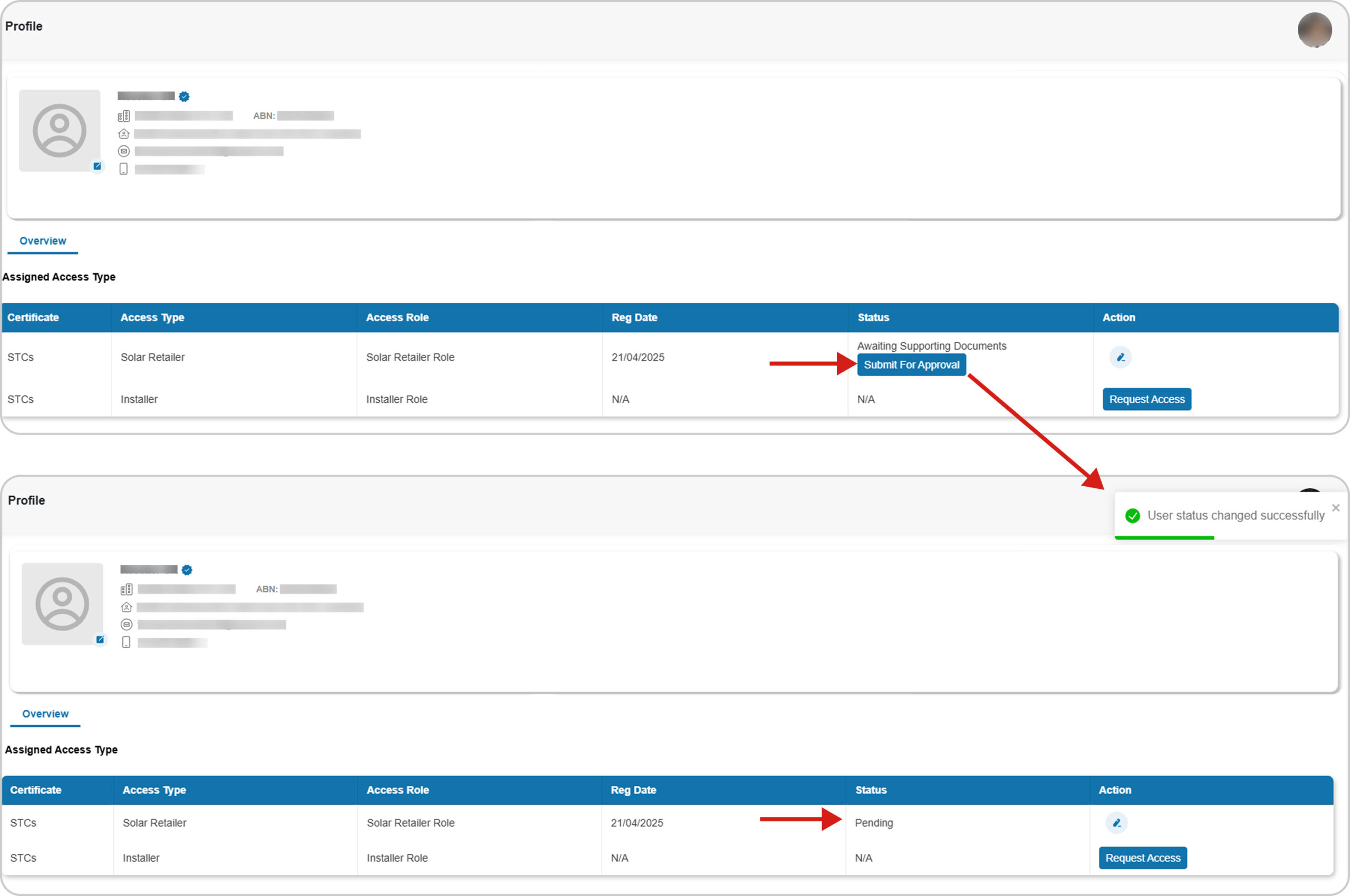
The “Submit for Approval” button becomes visible only once all the documents are uploaded in the Documents tab.
Click the “Submit for Approval” button below the “Awaiting Supporting Documents” status to continue the verification process.
Once the “Submit for Approval” button is clicked, the status changes to “Pending” for admin review.
4. Teams
Solar retailers can add installers to their team by using their valid installer’s SAA AccreditationNumber and Electrician Licence Number.
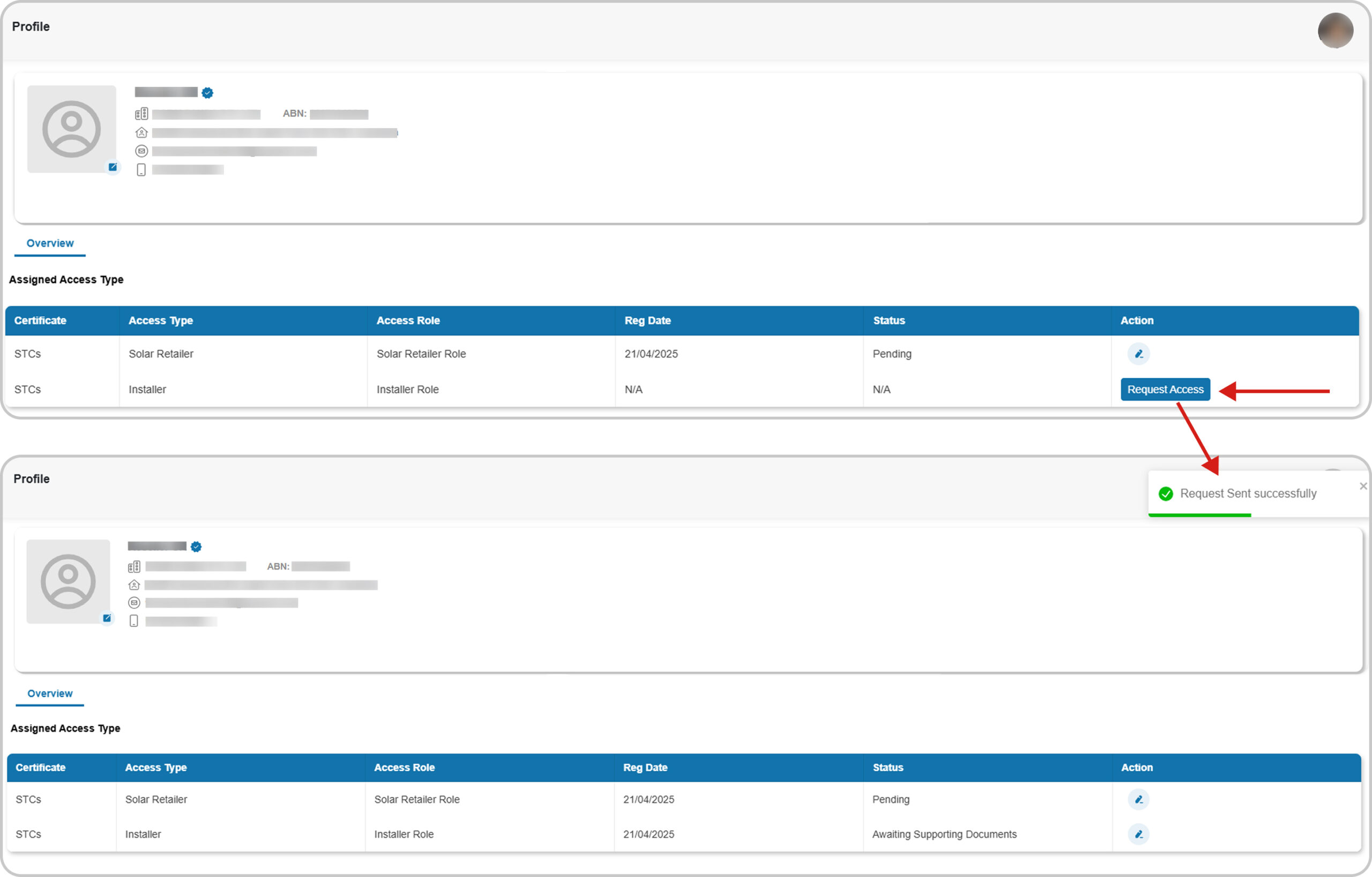
4. Request Access for SAA installers
If a solar retailer has registered on the web app and wants to gain access as an SAA Installer, they can submit request through their profile on the web platform.
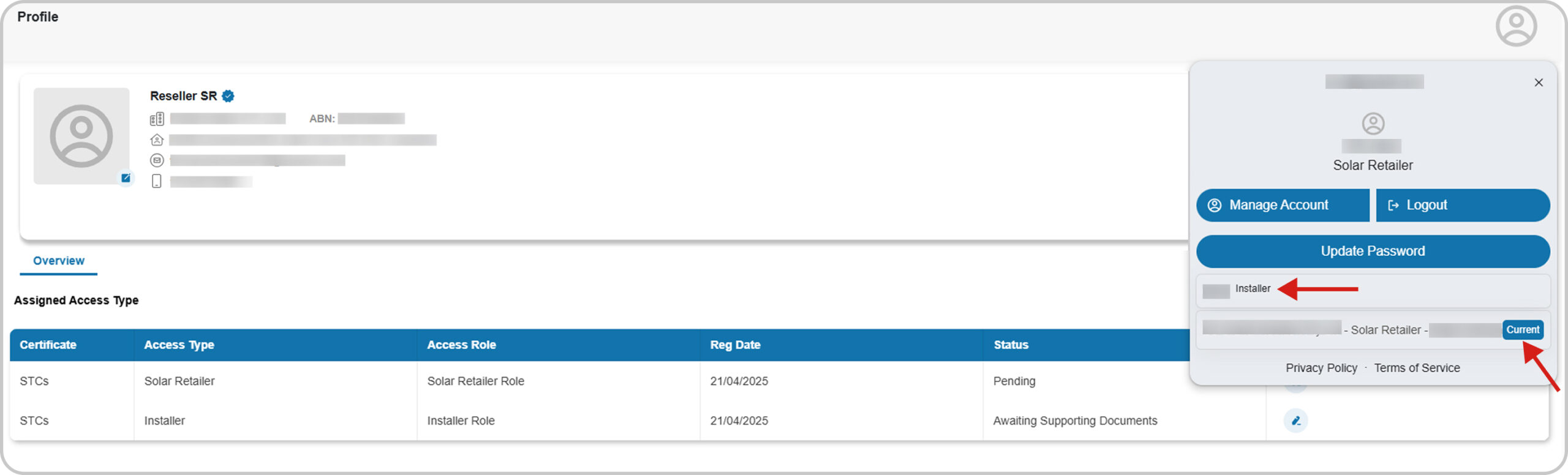
After getting access as SAA Installer, user can toggle accounts via the profile image dropdown.